Screenshot generator for Google Play
Phone and tablet presets, 9:16 or 16:9, no device frame by default. Free PNG or JPEG export without alpha.
Drop up to 10 screenshots here
PNG, JPEG or WebP. Your files stay in this browser.
Style
Targets
Layout
Each size adapts automatically. Untick the box above to set a layout for the current size only.
Text
About your app (for AI headlines)
One credit covers a set of up to 10 slides.
Headlines, translation and AI backgrounds are not switched on yet. The editor and every export work now, and nothing here costs credits.
Something went wrong.
Background
Uses your two colours. Abstract only: no devices, people, logos or text.
Frame
Generic frames are plain rounded slabs. Google Play presets default to no frame.
Only use bezel files you're licensed to use. Apple's bezels are licensed to Apple Developer Program members for marketing their own apps. Your file stays in your browser.
Languages
One credit per language. Each language exports into its own folder. Language list not verified against Apple's page.
Export
Your project autosaves in this browser.
Add a screenshot to export. PNG without transparency, as both stores require.
Google Play screenshot presets
Pick the presets you need; the ZIP puts each in its own folder under google-play/.
| Preset | Size in pixels | Note |
|---|---|---|
| Phone | 1080 × 1920 | 9:16 portrait, Google's recommended minimum |
| Phone, high-res | 1440 × 2560 | 9:16 portrait |
| Tablet, portrait | 1440 × 2560 | 9:16, inside Google's 1,080–7,680 px tablet range |
| Tablet, landscape | 2560 × 1440 | 16:9 |
| Feature graphic | 1024 × 500 | Separate store graphic. See the feature graphic generator |
Verified on 17 Oct 2026 · Source: Google. More detail: Google Play screenshot size and requirements.
Example: a four-screenshot Play set
Four 1080 × 1920 screenshots from one project, frameless, as Google suggests. Google recommends at least four for apps and asks you to put the strongest UI in the first three.
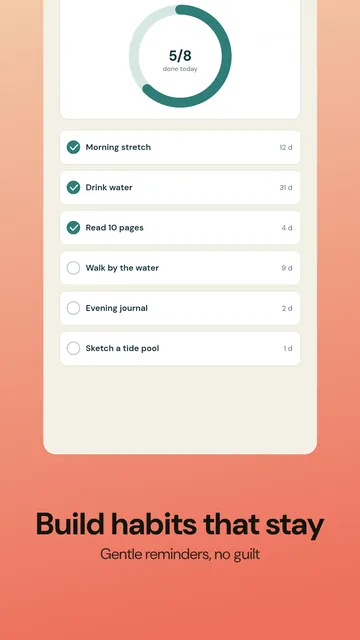 01 · 1080 × 1920
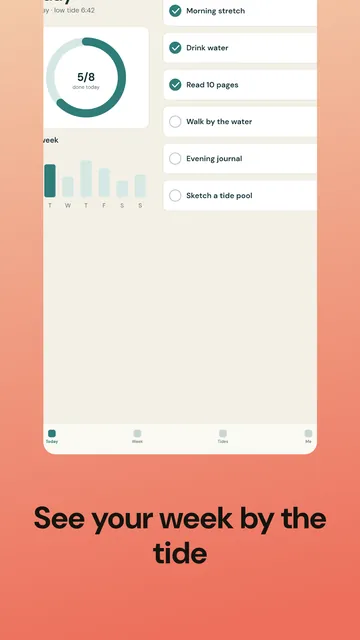 02 · 1080 × 1920
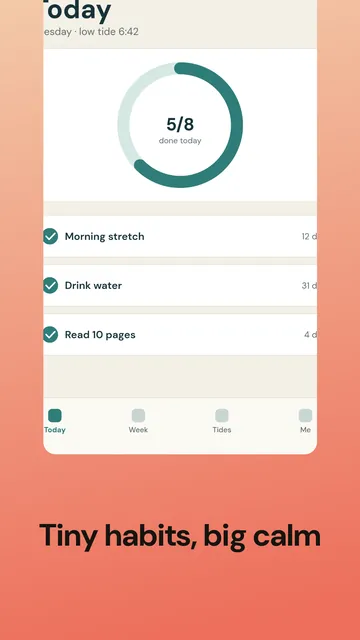 03 · 1080 × 1920
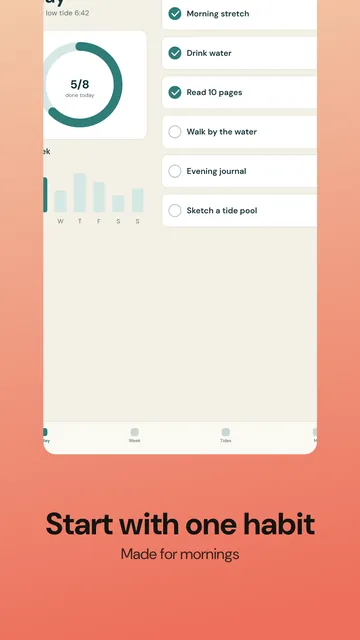 04 · 1080 × 1920
Caption checklist for Google Play
- Keep the tagline to about a fifth of the image or less (Google: at most 20%).
- No ranking or promo words: “Best”, “#1”, “Top”, “New”, “Discount”, “Sale”, “Million Downloads”.
- No calls to action such as “Download now”, and no other stores' badges.
- Avoid device imagery; the Play presets start without a frame for that reason.
- Show real UI in the first three screenshots, and add alt text for each in Play Console.
Verified on 17 Oct 2026 · Source: Google.
Other Android device types
These have their own rules in Google's help page. The generator has no presets for them yet; the list is here so you know what Play Console will ask for.
| Device type | What Google asks for |
|---|---|
| Wear OS | 1:1, at least 384 × 384, no device frames, no extra text or backgrounds, no transparency |
| Android TV | At least one TV screenshot plus a 1280 × 720 banner |
| Android Automotive OS | If provided: at least 2 portrait at 800 × 1280 and 2 landscape at 1024 × 768 |
| Android XR | 4 to 8 screenshots, 8:5, recommended 3840 × 2400 (at least 1920 × 1200) |
How to make Play Store screenshots
Upload at least four
Google recommends four or more screenshots for apps, with the best UI in the first three.
Keep captions short
Keep text to a small tagline. Aim for no more than 20% of the image, and no “Best”, “#1” or calls to action.
Export and upload
Download the ZIP and upload the files in Play Console. Add alt text there for each image.
Questions
What size should Google Play screenshots be?
Google's requirements: JPEG or 24-bit PNG (no alpha), at least 320 px and at most 3840 px on each side, and the long side no more than twice the short side. Google recommends 1080 × 1920 (9:16 portrait) or 1920 × 1080 (16:9 landscape) at minimum for apps. Source: Google, verified 17 Oct 2026.
How many screenshots do I need?
At least 2 across device types to publish, and up to 8 per device type. For Google's large-format recommendations, Google asks for at least 4 for apps.
Why is there no device frame by default?
Google's help page advises avoiding device imagery in screenshots and forbids frames on Wear OS. The Google Play presets therefore start frameless; you can still add a generic frame if you want one.
What can I write on the screenshot?
Google says taglines should cover at most 20% of the image and should not include words such as “Best”, “#1”, “Top”, “New”, “Discount”, “Sale” or “Million Downloads”, or calls to action like “Download now”. The AI headline feature follows these rules.
Does 1440 × 2560 work for phones and tablets?
It meets the published size rules for both: it is within the 320 to 3,840 px limit for screenshots, within the 1,080 to 7,680 px range Google gives for tablets, and it is 9:16. Whether one set suits both depends on your app; tablets usually show more of the interface.
Can I use my App Store screenshots on Google Play?
Not directly. Apple's sizes are about 0.46 wide per unit of height on iPhone, Google's recommended phone shape is 9:16 (0.5625). In the generator, tick both stores and every size is laid out for its own canvas from the same slides.
Is it really free?
Yes. The editor and every export (all sizes, PNG or JPEG, one ZIP) are free, with no watermark and no sign-in. Only the optional AI features use credits, and you sign in with Google to use them.